

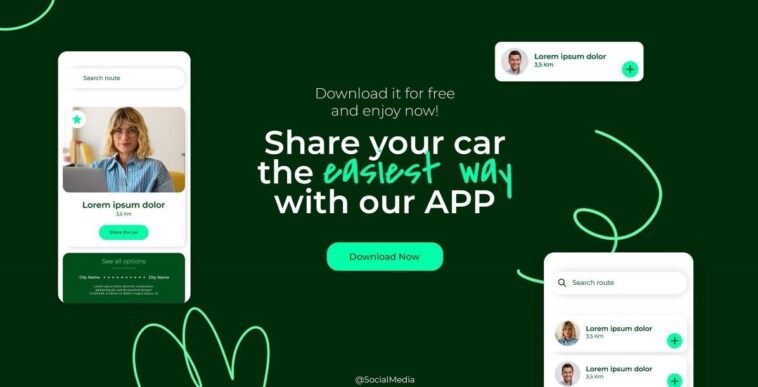
Creating a visually engaging presentation for your mobile app is no longer reserved for professional video editors or UI designers. Thanks to tools like Canva, you can easily build a polished video presentation or slideshow to showcase your app — even with zero video editing experience. Whether you’re a startup founder, designer, marketer, or freelancer, this guide will show you how to use Canva to build mobile app presentations that wow your audience, clients, or investors.
Why You Need a Mobile App Presentation
In today’s competitive tech environment, it’s not enough to just develop a great mobile app. You need to present it in a way that captivates and convinces. A compelling app presentation can help you:
- Demonstrate features clearly and quickly
- Showcase UI/UX flow in a real-world mockup
- Pitch to investors or stakeholders
- Sell your idea on landing pages or social media
- Display your work in a design portfolio
That’s where Canva comes in — making it easy for anyone to create professional-looking visuals without the need for Adobe Premiere or After Effects.
Why Use Canva for App Presentations?
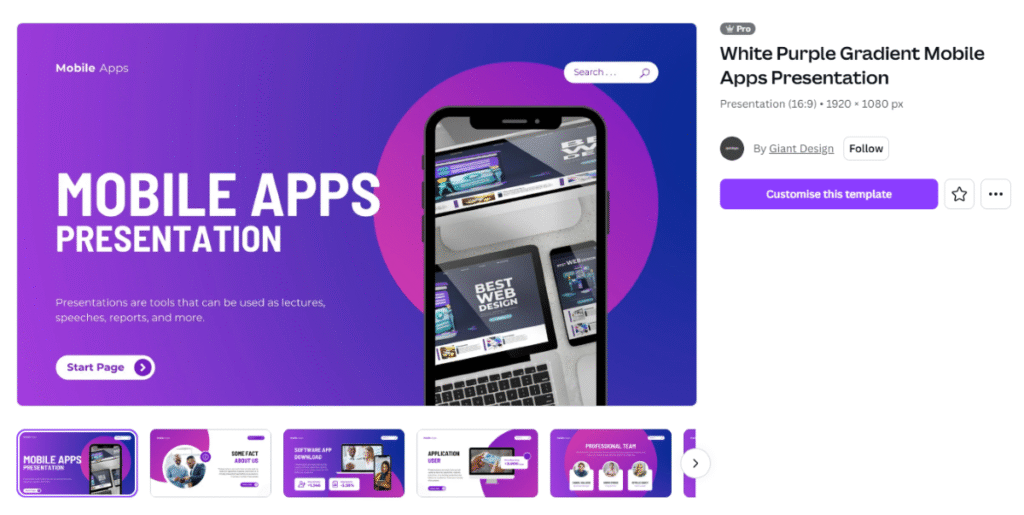
Canva is more than just a graphic design tool — it’s a full-fledged presentation and animation platform with drag-and-drop simplicity. Here’s why it’s ideal for app demo videos or mockup slideshows:
- Pre-built mobile app templates
- Phone mockup frames and UI elements
- Animations and transitions with no coding
- Voiceover and background music support
- Exports in MP4 or GIF for easy sharing
Whether you’re creating an explainer video, a UX case study, or a portfolio showcase, Canva has the tools to do it fast and efficiently.
Step-by-Step: How to Create a Mobile App Presentation in Canva
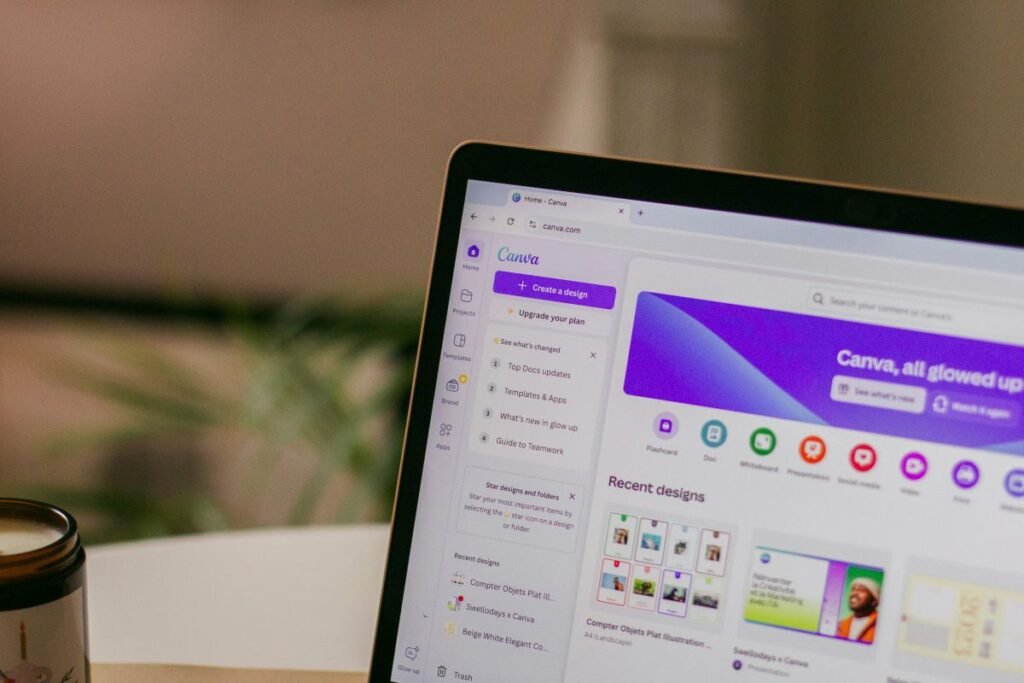
Let’s walk through the entire process of creating your own app demo or presentation using Canva:
Step 1: Set Up Your Canva Project
- Go to canva.com and log in or create an account.
- Click on “Create a Design” and choose:
- Presentation (1920×1080) for slides/videos
- Mobile Video (1080×1920) for vertical format (great for Instagram Reels or TikTok)
- Or use a custom size based on your target platform
- Presentation (1920×1080) for slides/videos
Step 2: Upload Your App Screens
Prepare your app assets in advance:
- Export mobile app screen designs from Figma, Sketch, or XD
- Take screenshots from your app if it’s live
- Drag and drop your images into Canva’s Uploads panel
These screens will form the foundation of your presentation.
Step 3: Use Phone Mockups to Frame Your Screens
Search “phone mockup” under Elements > Frames in Canva. Choose from realistic iPhone or Android frames, and drop your screen images inside.
You can:
- Show one screen per slide
- Or simulate user flow by showing multiple screens in sequence
This helps your audience visualize the app in action.
Step 4: Add Animations and Transitions
Canva allows you to animate individual elements or entire pages. Use this to simulate how users interact with the app.
Recommended animations:
- Fade: For smooth transitions
- Slide: To show screen changes
- Pop or Zoom: For button clicks or key features
Use Page Transitions to guide viewers through your slides smoothly.
Step 5: Add Descriptive Text and Captions
Under each screen or frame, add short texts to explain:
- What the screen does
- Which feature it demonstrates
- Benefits for users
Keep it short, clear, and focused. For example:
“Easily sign in with fingerprint authentication for added security.”
Use Canva’s text presets or create your own with brand fonts and colors.
Step 6: Optional – Add Voiceover or Background Music
You can:
- Upload your own voiceover MP3
- Use Canva’s built-in music library
- Record a voiceover directly in Canva (Pro users only)
This adds a professional, guided feel to your presentation — perfect for YouTube or investor pitches.
Step 7: Export Your Video or Slides
Once your presentation is complete:
- Click “Share” > “Download”
- Choose MP4 Video or GIF
- Set resolution (1080p recommended)
- Export and save
You can now upload the file to YouTube, Instagram, LinkedIn, or embed it into your website or blog post.
Tips to Make It Stand Out
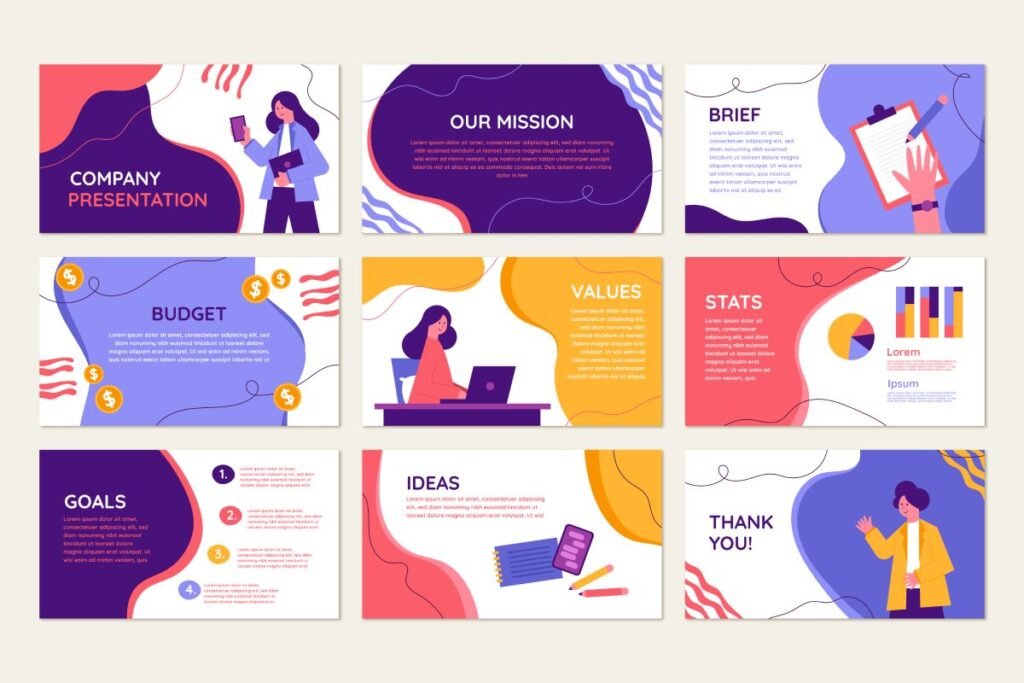
- Keep each slide under 10 seconds
- Use consistent brand colors, fonts, and iconography
- Focus on real user flows, not just pretty screens
- End with a strong CTA: “Download Now”, “Try for Free”, or “Contact Us”
Use Cases for Canva App Presentations
Here’s where you can use the video or presentation you create:
| Use Case | Platform |
| Startup Pitch | Investor deck, demo day |
| Portfolio Showcase | Behance, Dribbble, personal website |
| Social Media Teasers | TikTok, Instagram Reels, Facebook |
| Product Demo | YouTube, landing pages |
| Client Deliverable | Freelance UX/UI projects |
Monetization and Bonus Ideas
Since you’re publishing on OnPosted.com, here are ways to monetize this kind of article:
- Canva Pro Affiliate Links – Promote Canva and earn commissions.
- Sell Templates – Offer downloadable Canva mobile app presentation templates.
- Promote Your Services – Link to your design portfolio or Fiverr/Upwork profile.
- Bundle Freebies – Offer free UI kits or mockups from GraphicPicker and grow your email list.
Final Thoughts
Canva makes it easier than ever to build stunning mobile app presentations — without needing to hire a video team or learn complex tools. Whether you’re showcasing a personal project, pitching a startup, or creating content for clients, this simple process can turn static app screens into compelling, scroll-stopping visuals.
So the next time you launch an app or want to update your portfolio, don’t just post a screenshot — show it in action with a video presentation made in Canva.
GIPHY App Key not set. Please check settings