

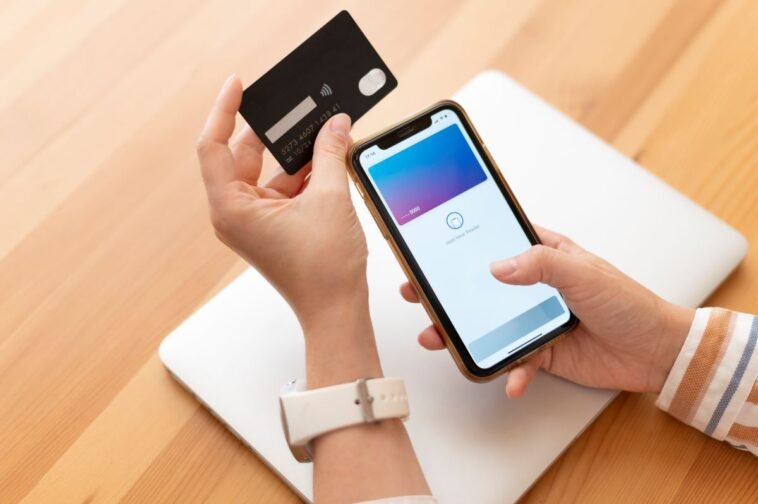
Apple Wallet is a convenient tool for boarding passes, loyalty cards, and event tickets—but when it starts bombarding you with unsolicited movie promos or location-based ads, it can quickly become more annoying than useful. Thankfully, there are effective and easy ways to stop the spam without deleting everything.
Here’s how to take control.
1. Turn Off “Suggest on Lock Screen” for Specific Passes
If you’ve added a movie ticket or loyalty card and Wallet suggests it repeatedly based on your location, disable those prompts manually:
- Open the Wallet app directly (don’t double-click Apple Pay).
- Select the ticket or pass that’s spamming you.
- Tap the three dots (…) or the ℹ️ info button.
- Toggle off “Suggest on Lock Screen” for that pass theverge.comreddit.com+13ios.next.gadgethacks.com+13reddit.com+13reddit.com+3ilounge.com+3igeeksblog.com+3help.passkit.com+6discussions.apple.com+6makeuseof.com+6.
This leaves your other important passes intact while silencing the ones causing spam.
2. Delete Old or Unused Passes
Wallet may keep suggesting expired or outdated passes—especially around locations tied to them. Remove these to stop the nagging alerts:
- Open Wallet via its app icon.
- Go to the “Expired Passes” section (scroll to the bottom).
- Tap Edit, select passes, and hit Delete makeuseof.com+2thesweetsetup.com+2ilounge.com+2.
This clears clutter and reduces unwanted lock screen suggestions.
3. Revoke Wallet’s Location Access (If Needed)
If disabling suggestions on passes isn’t enough, you can block Wallet’s location access entirely:
- Go to Settings → Privacy → Location Services → Wallet, then set access to Never makeuseof.com.
This prevents any location-based suggestions—though it’s a broader approach that also stops useful prompts like transit cards near stations.
4. Manage Global Notifications
When notifications get out of control, consider tuning them globally—while still keeping essential alerts active:
- Navigate to Settings → Notifications → Wallet.
- Disable Lock Screen banners or Allow Notifications entirely ios.gadgethacks.com+1ios.next.gadgethacks.com+1reddit.com+13earlruby.org+13reddit.com+13help.passkit.com+4discussions.apple.com+4reddit.com+4.
Warning: this method blocks all Wallet alerts—including reminders for boarding passes or passes you do want. It’s a trade-off.
5. Understand Why Advertises Slip Through
These movie promos—like the recent unsolicited F1 film offer—reach you via push notifications tied to a pass update, not standard in-app ads theverge.com+1help.passkit.com+1. That means Wallet is following Apple’s design (albeit intrusively), so manual suppression remains the only reliable fix.
Reddit Users Say:
“Delete the ticket from Apple Wallet and it should go away.” reddit.com+4reddit.com+4igeeksblog.com+4
“Disable Allow notifications for this specific card in the wallet.” iphonelife.com+4reddit.com+4reddit.com+4
Multiple users confirm that targeting notifications per pass—rather than all-in—is the most effective solution.
Final Thoughts: Keep What Matters, Ditch the Rest
You don’t have to delete your loyalty cards or travel passes just to stop movie spam. With a few targeted adjustments—like disabling lock screen suggestions per pass and cleaning out unused items—you can enjoy Wallet’s benefits without the ads.
When Apple or third-party issuers push content through pass updates, your phone isn’t broken—it’s behaving as designed. So take back control with these precise tweaks, and keep only the notifications you actually need.
GIPHY App Key not set. Please check settings