


Depending on how your hosting environment, you may be able to increase PHP upload limits, adjust the web server configuration, or use a legacy version-specific workaround.
This method used older version 6.77
If you do not have that version, you can download here, all-in-one-wp-migration.6.77
Important: Increasing a file-size limit does not guarantee that a large backup will import successfully. Your server must also have sufficient memory, processing time, disk space, and compatible software.
Step 1: Increase the PHP Upload Limit
Edit the .htaccess File (Apache Servers)
If your host runs Apache or shared hosting and allows overrides, you can edit the .htaccess file located in the root directory of your WordPress installation (where folders like wp-content and wp-admin reside).
- Access your site via cPanel File Manager or FTP/SFTP.
- Open the
.htaccessfile and add the following lines at the very bottom:
upload_max_filesize = 256M
post_max_size = 256M
memory_limit = 512M
max_execution_time = 300
3. Save the file
Edit functions.php (Theme-level workaround)
You can try adding an ini_set declaration inside your active theme’s functions.php file, though this only works if your host hasn’t locked these settings globally:
@ini_set( 'upload_max_size', '256M' );
@ini_set( 'post_max_size', '256M' );
@ini_set( 'memory_limit', '512M' );
Step 2: Increase the Import Limit in All-in-One WP Migration Version 6.77
This section is specifically for the legacy version 6.77. Do not assume that the same code or file location applies to newer releases. Some older tutorials describe modifying constants.php to change the maximum import-file size in All-in-One WP Migration 6.77.
If you are seeing this error messages like the screenshots below then you need to increase the upload limit form plugin editor.
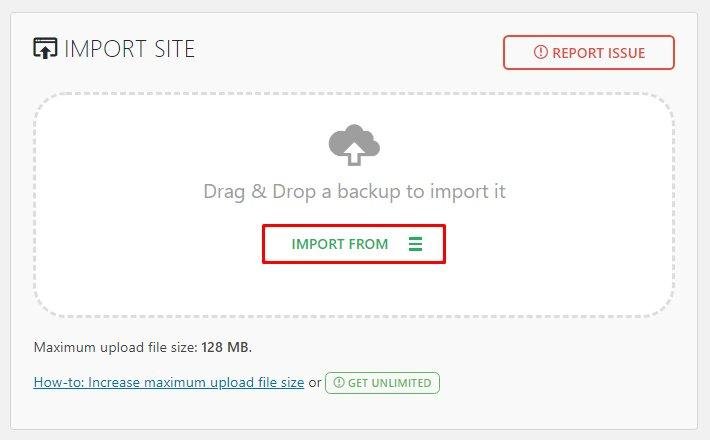
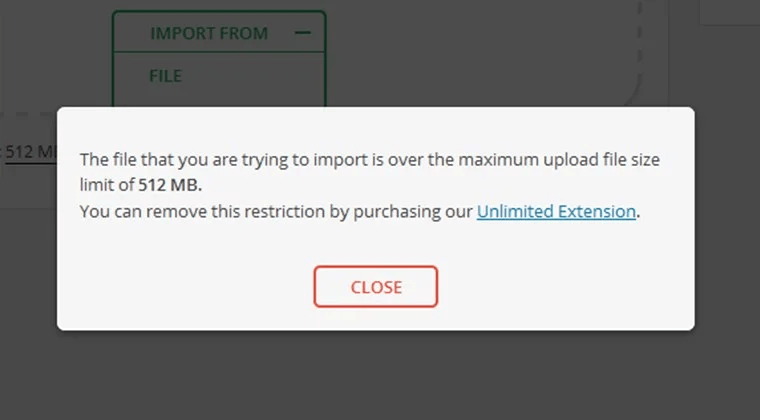
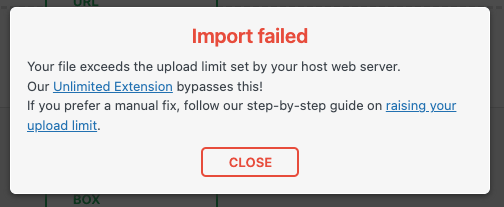
The relevant constant is:
define( 'AI1WM_MAX_FILE_SIZE', 2 << 28 );
The expression 2 << 28 evaluates to 536,870,912 bytes, or 512 MiB.
Changing this constant changes the maximum file size defined by that particular version of the plugin. It does not change the PHP upload limit or other restrictions imposed by the hosting environment.
Locate constants.php
In the constants file…
/wp-content/plugins/all-in-one-wp-migration/constants.php
Find this…
// =================
// = Max File Size =
// =================
define( ‘AI1WM_MAX_FILE_SIZE’, 2 << 28 );
and replace with this…
// =================
// = Max File Size =
// =================
define( 'AI1WM_MAX_FILE_SIZE', 2 << 28 *1.2);
And you will have 16GB upload limit.
However some of the version may have this kind of code. If your code is look like this:
// =================
// = Max File Size =
// =================
define( 'AI1WM_MAX_FILE_SIZE', 536870912 );
Then you can change the maximum file size and replace the code with this…
// =================
// = Max File Size =
// =================
define( 'AI1WM_MAX_FILE_SIZE', 536870912 * 8 );
And you will have 4GB upload limit.
For a 5 GiB limit, the constant can be expressed as:
define( ‘AI1WM_MAX_FILE_SIZE’, 5368709120 );
This value is 5,368,709,120 bytes.
For reference:
| Desired limit | Value in bytes |
| 1 GiB | 1,073,741,824 |
| 2 GiB | 2,147,483,648 |
| 5 GiB | 5,368,709,120 |
| 10 GiB | 10,737,418,240 |
These are binary GiB values expressed in bytes. The number shown by an interface may differ slightly depending on how it labels MB, GB, MiB, and GiB.
Important: If the constant is already defined elsewhere or the plugin’s implementation differs, do not add a duplicate definition. Modify the existing definition in the correct location.